Security Testing with Claude + Chrome MCP
Security Testing with Claude + Chrome MCP
Section titled “Security Testing with Claude + Chrome MCP”Introduction
Section titled “Introduction”When the AI works on a task, MCP lets it connect to external tools. The point of Chrome MCP is that it lets the AI drive a browser. Plenty of scenarios benefit from that, not just security testing.
There are many ways to have the AI request a website — a curl command, a script, and so on. So why involve the browser at all? Because a plain request can’t cover every case.
Take vulnerability research. A great deal of content is produced only after dynamic JavaScript runs. An index.js can be fetched and returned as text, but it can’t be rendered; once the JS runs, there may be new forms and new endpoints. Testing for XSS is the same problem: the response carries the payload, but we don’t know whether it was ever parsed. Multi-step flows are another example — a multi-step form needs you to fill in the first step, click next, let the JS navigate, and only then continue.
A lot of functional testing really does need JS to be parsed and executed. If the endpoint address and request parameters are fixed and all you need is the server’s response, then Chrome MCP adds nothing.
Installation
Section titled “Installation”This post uses Chrome’s official MCP plugin, called chrome devtools mcp. Its repository:
https://github.com/ChromeDevTools/chrome-devtools-mcpThe tool exposes a broad set of operations: opening pages, reading page content and interacting with it — clicking, typing, dragging, switching between pages, closing pages — plus page debugging, performance analysis, screenshots, and extension management. It lets the AI operate a browser much the way a person does.
Claude Code is the installation example here; for other agent terminals, search for the equivalent steps. Claude needs only the command below, where -- separates Claude’s own arguments from the MCP launch command, and --scope user installs the server at the user level.
claude mcp add chrome-devtools --scope user -- npx -y chrome-devtools-mcp@latestOnce installed, list Claude’s MCP tools:
claude mcp listOr inspect a tool’s configuration by name with get:
claude mcp get chrome-devtools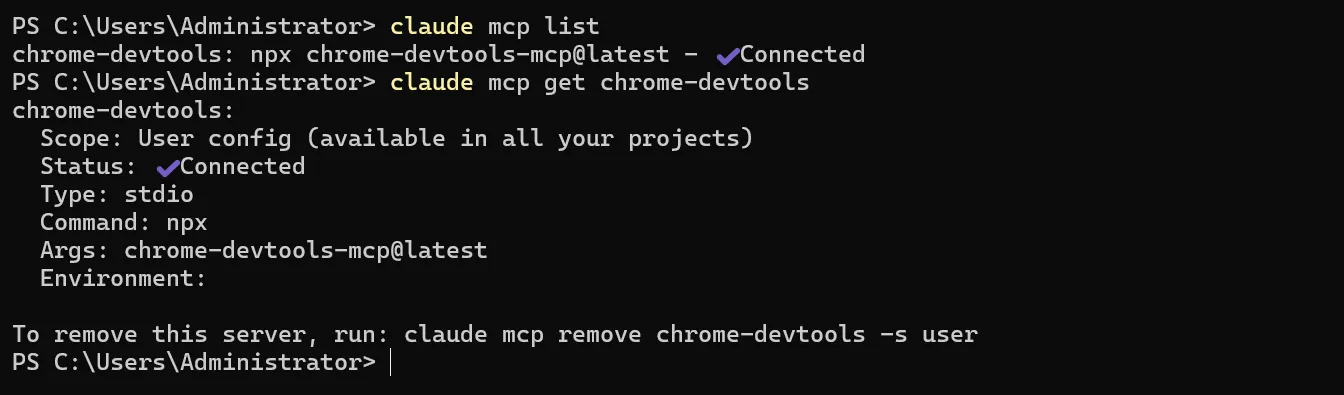
What this actually does is write the MCP configuration into Claude’s config file. On Windows that file is .claude.json in the user’s home directory, and the added entry looks like this:
"mcpServers": { "chrome-devtools": { "type": "stdio", "command": "npx", "args": [ "chrome-devtools-mcp@latest" ], "env": {} } }As an aside: in PowerShell, ~ and $home both refer to the user’s home directory, while in cmd it’s %userprofile%.

Testing
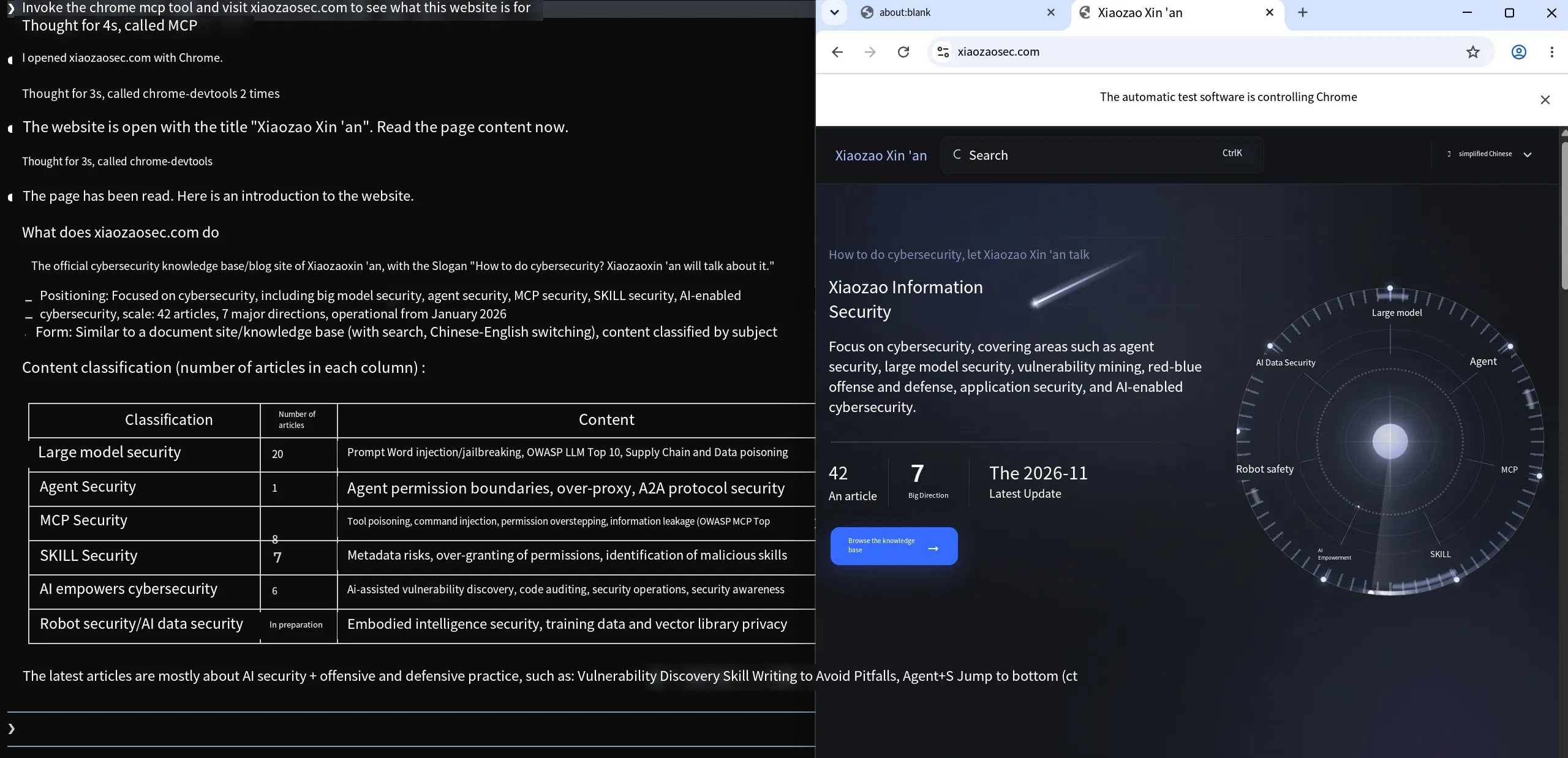
Section titled “Testing”A quick test: ask the AI to call Chrome MCP, visit the Xiaozao Sec blog, and summarize what the site is for. The prompt:
Use the chrome mcp tool to visit xiaozaosec.com and see what this website is aboutClaude then opens Google Chrome, enters the URL, and works through the task:
Conclusion
Section titled “Conclusion”In practice, a security testing skill can explicitly state which functions should call Chrome MCP — or say nothing and let the AI decide from its own understanding of the task. All you need to do is load the tool so the AI can recognize it.