MCP Security Series: MCP Basics
MCP Security Series: MCP Basics
Section titled “MCP Security Series: MCP Basics”What is MCP
Section titled “What is MCP”A key part of an Agent is its ability to call external tools to get things done. For example, you could ask an Agent to plan a route from A to B for tomorrow, find restaurants and attractions along the way, save the results to a database, and then compile everything into a detailed document sent to your email. Throughout this whole process, the LLM cannot do it alone — it must call external tools: route planning needs a map lookup, storage needs a database call, sending email needs an email service, and so on.
There are many forms of external tool invocation — tool-style calls, API calls, database access, code execution, and more. Since the LLM has to integrate with external programs, an integration layer must be developed to connect Agents with external tools. In essence, that’s code development for mutual invocation. But this raises a problem: every Agent is different. When multiple Agents need to call multiple tools, the same set of calling code may not fit every Agent. Moreover, if one tool is connected to multiple Agents, a change to the tool may require changes in all of those Agents — cumbersome, and the code becomes highly coupled.
A good way to solve this problem is unified standardization — in other words, a protocol. And that protocol is MCP. Simply put, MCP standardizes the calling format: when Agents call tools, and when tools integrate with Agents, everything is developed against this standard, making it universally compatible.
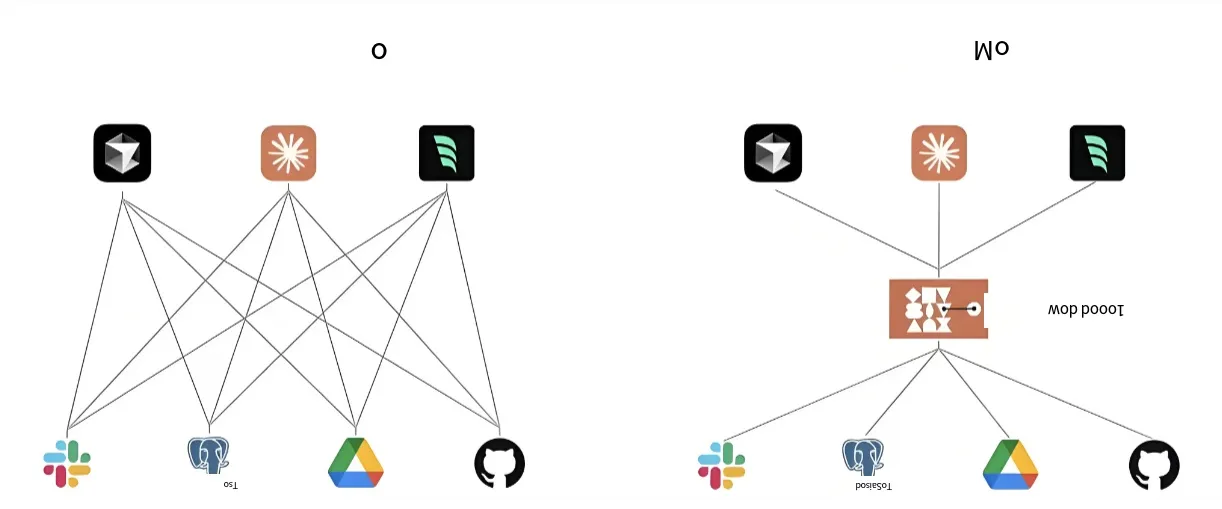
So MCP is the interface that connects the LLM to everything. It’s like a USB port: a computer connects to many external devices — a mouse, a keyboard, a charging cable, a small fan, and so on. When these devices are manufactured, they are all developed uniformly to the USB standard, so a device plugs into computer A or computer B just fine, and computer A can connect not only a mouse but also a keyboard and many other devices.
Here’s a classic diagram from the web that helps illustrate this:
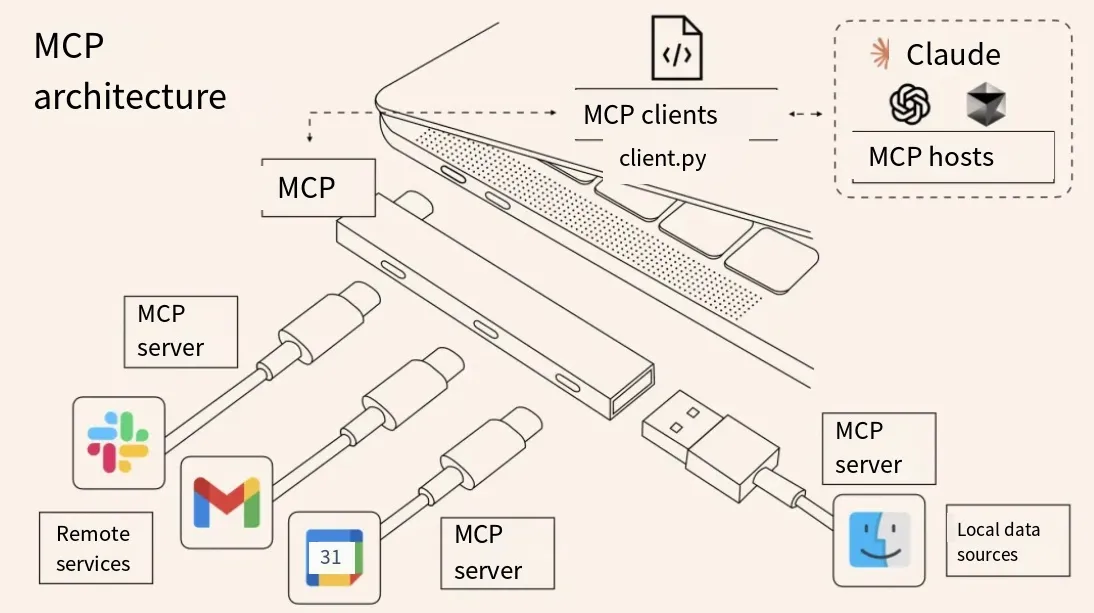
So MCP is the protocol through which LLMs uniformly invoke external interfaces, but at its core it’s the idea of unified standards. This idea is applied in many places: the RESTful convention in development, the USB interface in computers, even electrical outlet standards, and video/photo formats in media — all embody this way of thinking.
MCP Workflow
Section titled “MCP Workflow”MCP stands for Model Context Protocol. It was introduced by Anthropic. Throughout the MCP process, the architecture is quite similar to a client/server model, and it involves several concepts:
-
MCP Hosts: These are simply the main applications that run MCP, such as Cursor, Claude Desktop, Cline, Cherry Studio, etc. They are large tools in their own right — they can connect models, configure Skills, and configure MCP. So MCP is one feature of these tools, and in that case, the tools play the role of hosts.
-
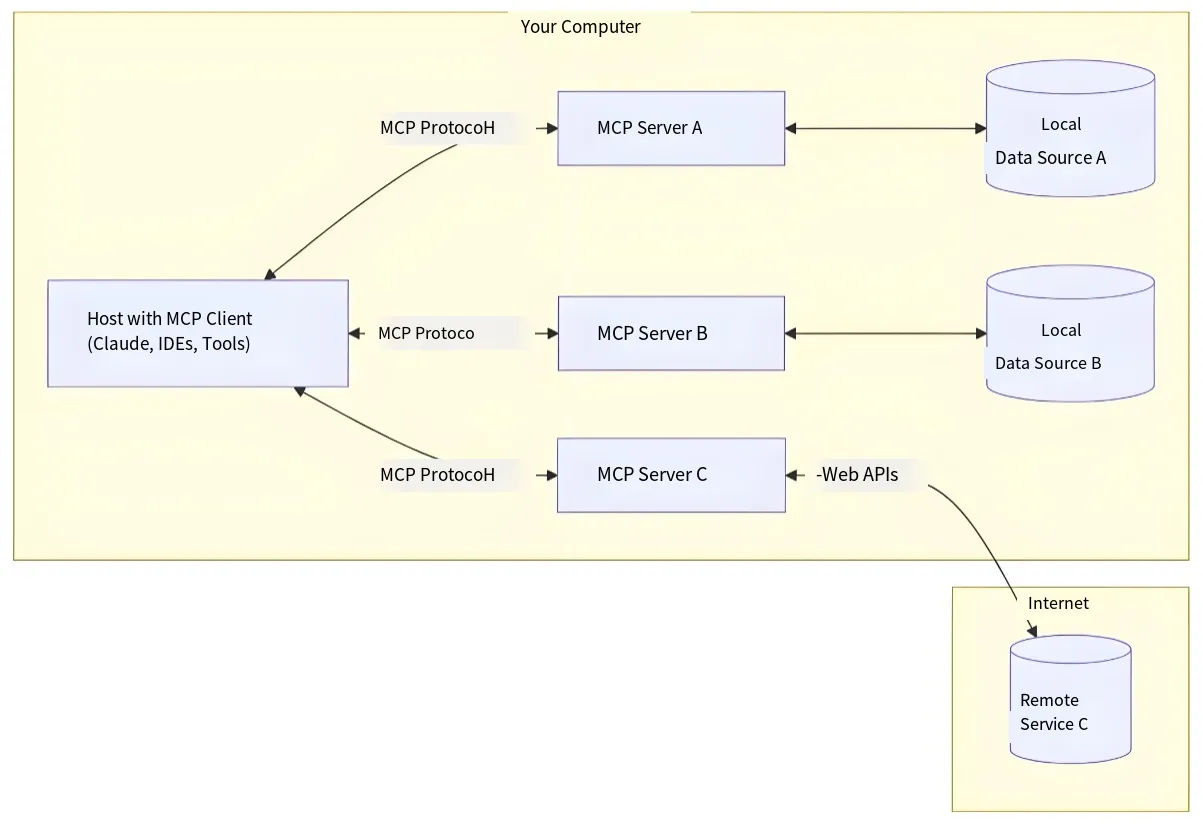
MCP Clients: These are the features inside a host used to configure MCP. For example, the MCP configuration feature in Cursor — that specific feature is the client. Clients are embedded within the host application and primarily act as the bridge between the LLM and the server side: they forward LLM requests to the corresponding MCP server and return the MCP server’s results back to the LLM.
-
MCP Servers: An MCP server is essentially a program. Programs written in TypeScript can be run with npx, programs written in Python can be run with uvx, and it can be written in other languages too. This program can be invoked either locally or remotely: locally means the program is downloaded onto the current machine; remotely means calling code on a remote server over HTTP.
-
Local Resources: The MCP server program is downloaded and runs on the local machine, and can directly operate on local resources.
-
Remote Resources: The MCP server program runs on a remote server, and the client accesses and invokes it via a URL.
So the whole MCP workflow, in simple terms, is: the MCP feature inside some software communicates with the server side via the MCP protocol and delivers the results to the LLM, while the server-side resources can be local or remote, as shown below.
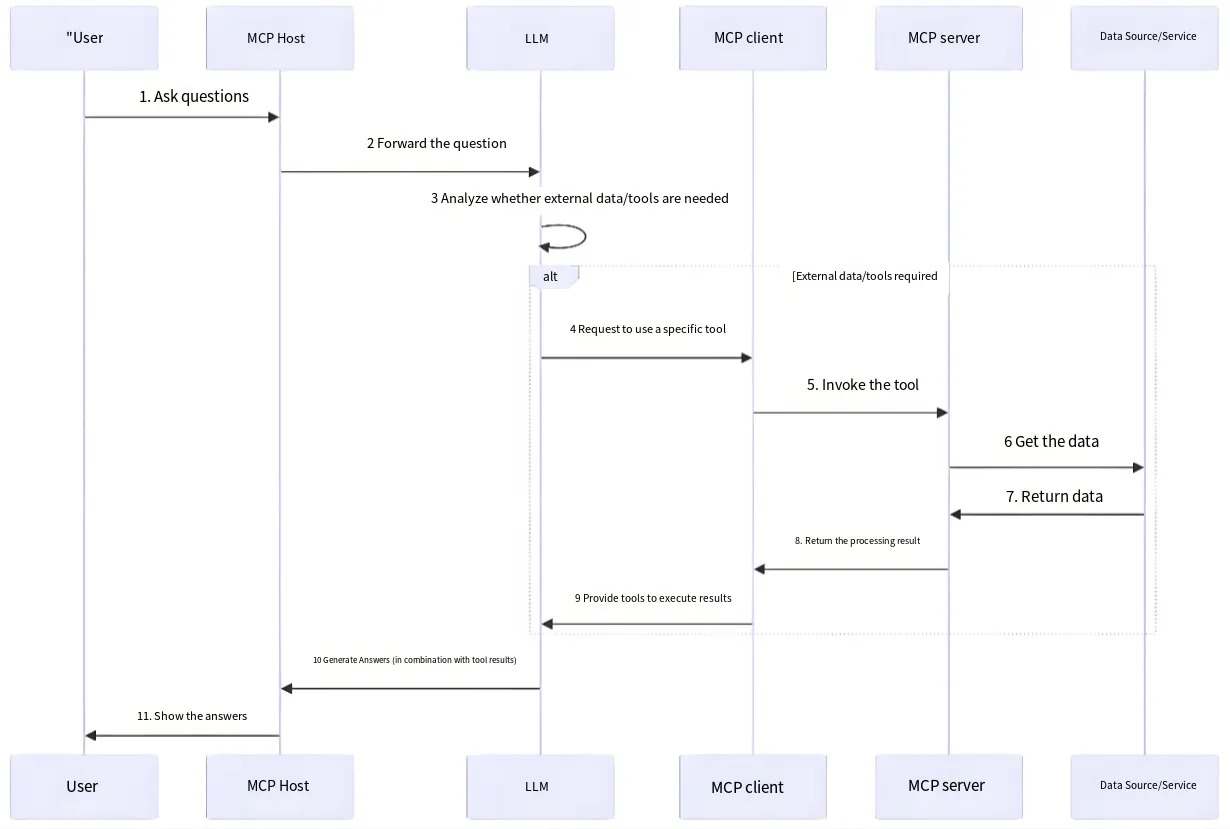
For a more detailed view of the communication process, refer to the diagram below:
MCP Platforms
Section titled “MCP Platforms”MCP server-side resources are growing rapidly and now cover many scenarios. Here are a few platforms where you can search for relevant servers:
1. Official MCP resources: https://github.com/modelcontextprotocol/servers2. Popular MCP resources: https://github.com/punkpeye/awesome-mcp-servers3. glama platform: https://glama.ai/4. smithery platform: https://smithery.ai/5. cursor platform: https://cursor.directory/6. mcp platform: https://mcp.so/Example
Section titled “Example”Now that we understand the basics of MCP, let’s test it out. There are two scenarios here: one development-oriented, using the Cline plugin in VS Code; the other non-development-oriented, using Cherry Studio.
Let’s first look at the Cline plugin in VS Code. Cline allows you to configure LLMs and MCP for AI development. Here, Cline acts as the host, and its MCP configuration feature acts as the client.
The requirement is to connect to a database via MCP for operations. We simply download the Cline plugin from the VS Code marketplace. After downloading, find the MCP configuration icon (position 1 in the image below) and click “Configure MCP Servers”, which opens a JSON file — this file is the configuration file for MCP.
For example, to configure the MySQL tool, we need to search for a MySQL server on the MCP platforms mentioned in the previous section. They provide configuration examples, and we just need to copy one over.
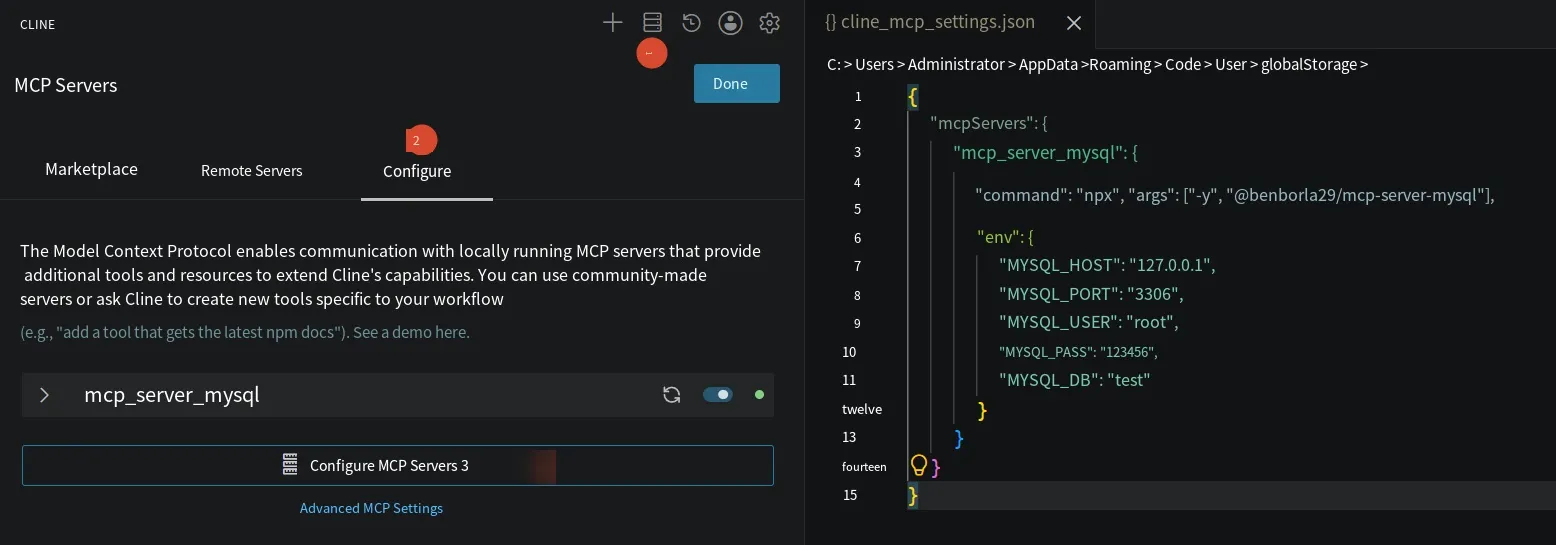
The MySQL tool used here is benborla29/mcp-server-mysql. This tool used to be searchable on the relevant MCP platforms, but it can no longer be found there — you need to search for it on the npm website (https://www.npmjs.com/), because it’s developed with Node.js and is essentially an npm package. Its configuration example is as follows:
{ "mcpServers": { "mcp_server_mysql": { "command": "npx", "args": ["-y", "@benborla29/mcp-server-mysql"], "env": { "MYSQL_HOST": "127.0.0.1", "MYSQL_PORT": "3306", "MYSQL_USER": "root", "MYSQL_PASS": "your_password", "MYSQL_DB": "your_database" } } }}In the config above, you need to replace the relevant values with your own. As you can see, it essentially runs an npx command — that is, it uses npx to run a Node program. When the LLM needs to call the database tool, this command runs, and the code that actually operates on the database lives inside that Node program.
Let’s test it: for example, ask the LLM to create a character relationship table for the Three Kingdoms and save it as an HTML page. The prompt is as follows:
I want to design a Three Kingdoms character relationship database.
Please use the MySQL MCP tool to design and create a character_relations relationship table in the current test database, with fields such as source character, target character, relationship type (e.g., sworn brotherhood, married couple, master-servant, archenemy), and relationship description, and insert at least 8 sets of typical Three Kingdoms character relationships (e.g., Liu Bei, Guan Yu and Zhang Fei; Cao Cao and Xun Yu, etc.).
Query the data just inserted to verify that reading works correctly.
Generate a beautiful index.html page in the current project root directory, displaying these Three Kingdoms character relationships in the form of charts or cards, and save the file.
The final result was quite good, so no screenshot is shown here.
Now let’s look at how Cherry Studio is configured — it’s actually much the same. After downloading Cherry Studio, find the MCP server option in Settings, click the edit feature, and you can directly edit the JSON configuration file — the same kind of configuration file as with Cline, as shown below:
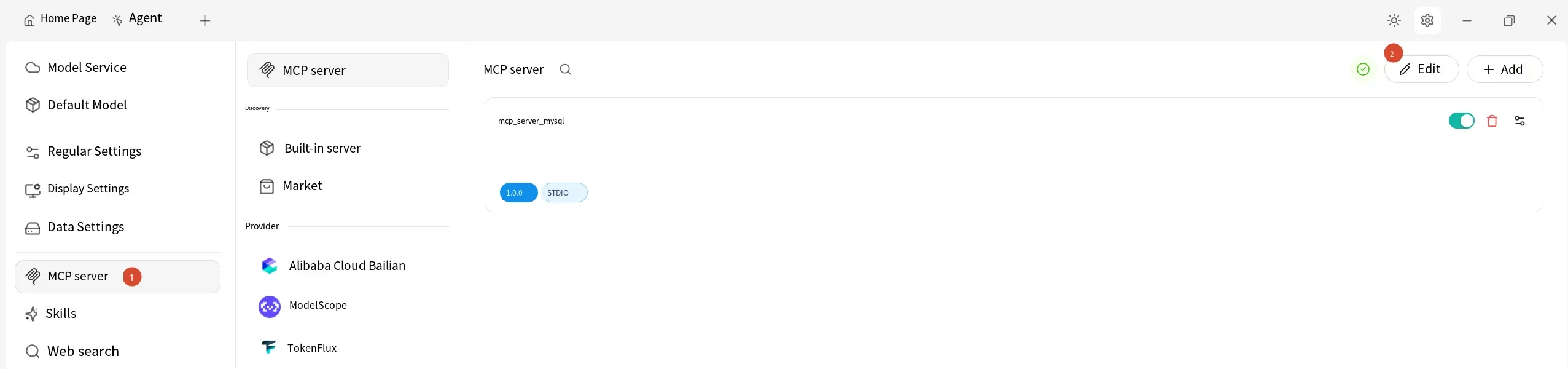
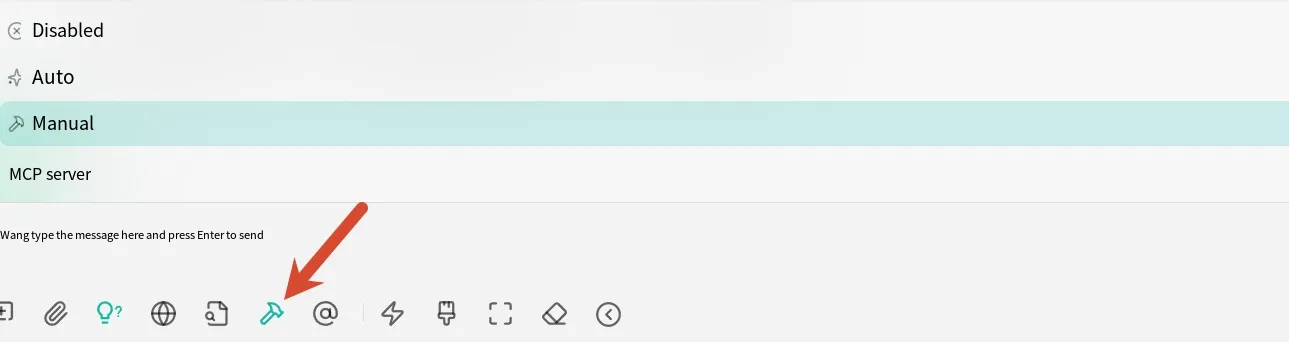
After configuring, make sure the MCP server is enabled. Then, in the chat interface, you can select MCP tools. You can choose automatic mode, where the LLM decides which tool to call based on the task, or manual configuration, where you give the LLM a whitelist of MCP tools and it can only call tools on that list, as shown below.
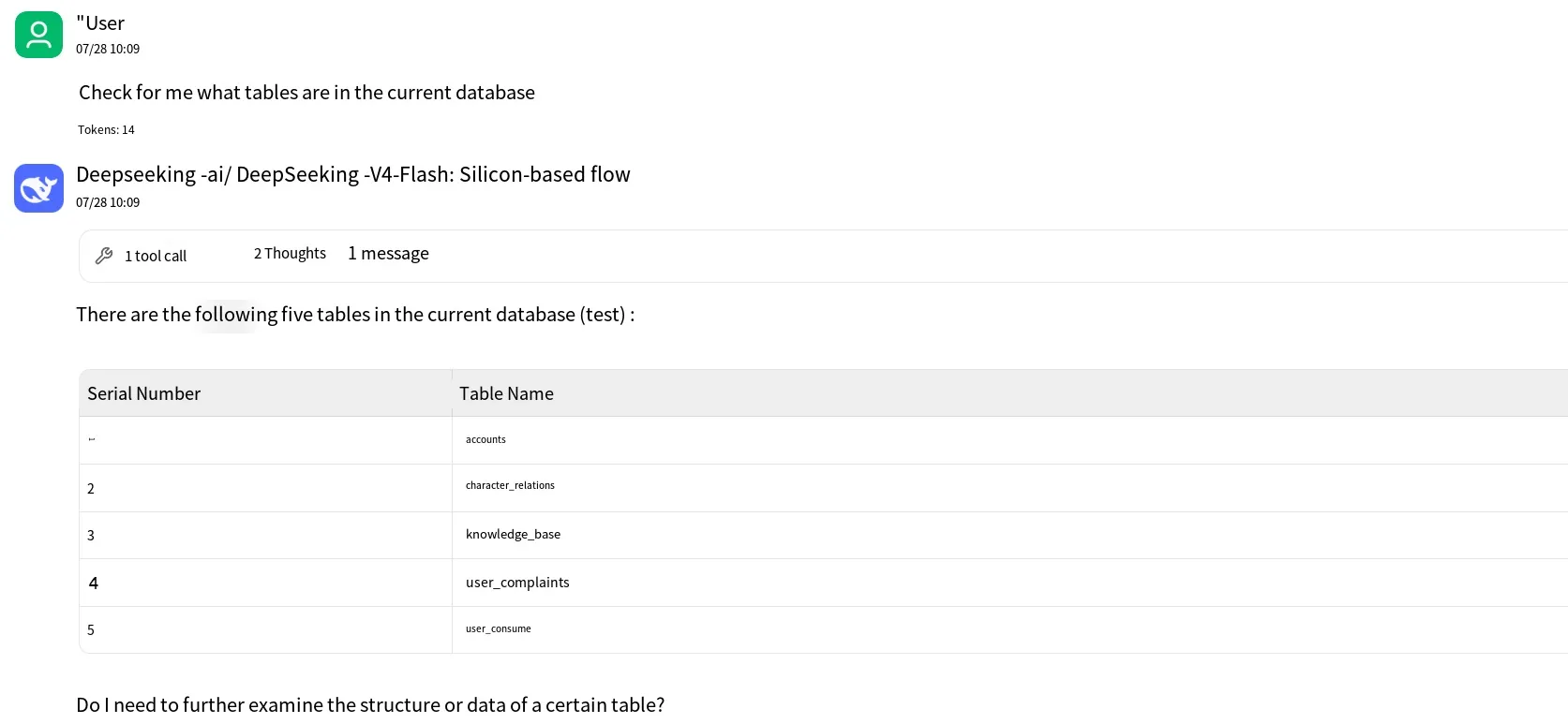
Here’s a quick test: ask the LLM to check which tables exist in the database. The result:
Summary
Section titled “Summary”That’s the basics of MCP, which will help us understand MCP security topics in the articles to come. Thanks for reading.