Defending Against Malicious Skills: SkillSpector Deployment and Detection
Defending Against Malicious Skills: SkillSpector Deployment and Detection
Section titled “Defending Against Malicious Skills: SkillSpector Deployment and Detection”Introduction
Section titled “Introduction”SkillSpector is an open-source Skill security scanning tool developed by NVIDIA, with the following features:
Input formats: Supports Git repositories, URLs, ZIP files, directories, and individual files.
Vulnerability coverage: Performs white-box code scanning, currently covering 68 vulnerability patterns across 17 categories, including prompt injection, data leakage, privilege escalation, supply chain, over-agency, output handling, system prompt leakage, memory poisoning, tool abuse, malicious agents, anti-refusal, trigger abuse, dangerous code (AST), taint tracking, YARA signatures, MCP least privilege, and MCP tool poisoning.
Component scanning: Queries OSV.dev for real-time CVE data to check third-party components used by the Skill for known CVEs.
Semantic analysis: Can integrate with LLMs to perform semantic security checks on the textual parts of a Skill.
Report output: Can generate reports in JSON, Markdown, and other formats.
Baseline and false-positive mechanisms: These are concepts from static scanning. A baseline means the first scan result is saved as a baseline, and subsequent scans only report new vulnerabilities — issues already in the baseline are not reported again. A false positive tells the tool that a certain issue in this project is a misreport, so it won’t be flagged on the next scan (limited to the current project only). In essence, both baselines and false-positive suppression are mechanisms for suppressing further reports of a given issue.
Risk scoring: Provides a score so you can intuitively gauge how dangerous a Skill is, along with clear, actionable recommendations.
Deployment
Section titled “Deployment”Using Windows as an example, we’ll install via uv, which is the officially recommended method. First, make sure uv is installed on your machine. If not, you can install it via pip:
pip install uvThen use uv to install SkillSpector. uv is essentially a Python package manager, but since it’s written in Rust, it’s faster.
uv tool install git+https://github.com/NVIDIA/skillspector.gitBesides command-line usage, SkillSpector can also be exposed as an MCP service for other platforms. However, MCP support is an extension module that needs to be installed separately. If you need MCP, use the following command, which installs MCP along with SkillSpector:
uv tool install --with 'mcp<2' 'skillspector[mcp] @ git+https://github.com/NVIDIA/skillspector.git'Note the extra --with parameter here: it tells uv to add an mcp library (with version < 2) to the virtual environment it creates. This step isn’t documented in the official manual — many users have reported that without this parameter, the MCP service fails to start with a “missing MCP library” error.
Since installation requires pip and git, it may be slow due to network conditions. You can configure a pip mirror and git proxy for the current terminal, for example:
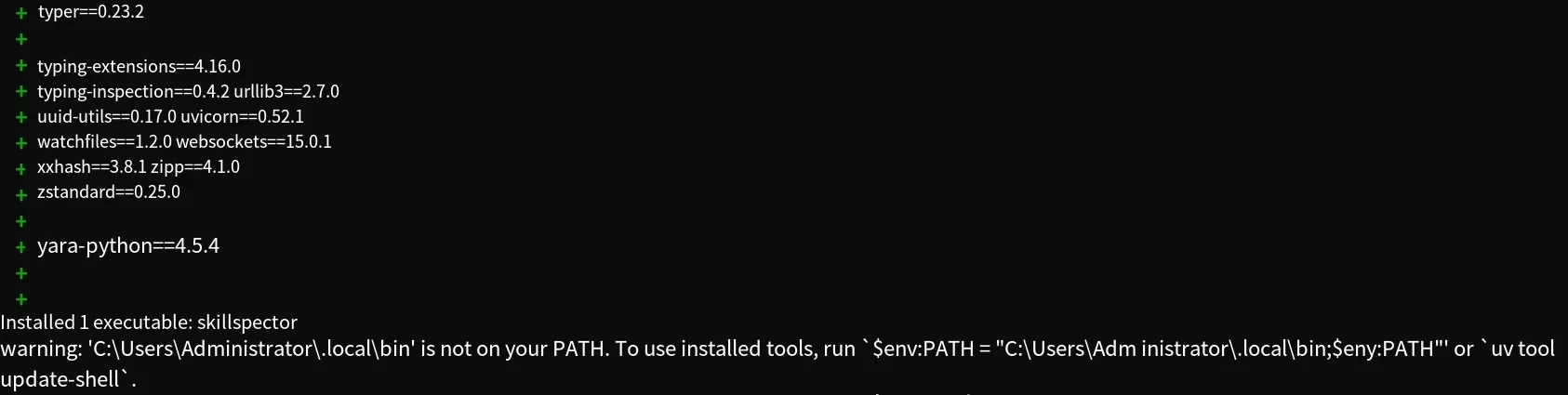
$env:PIP_INDEX_URL="https://pypi.tuna.tsinghua.edu.cn/simple"$env:PIP_EXTRA_INDEX_URL="https://pypi.tuna.tsinghua.edu.cn/simple"$env:HTTP_PROXY="http://127.0.0.1:7897"$env:HTTPS_PROXY="http://127.0.0.1:7897"After installation, the tool is saved to the .local\bin directory under the current user, and you’ll be warned that this directory is not on the PATH — you need to add it to your environment variables manually.
When scanning, SkillSpector performs rule-based static scanning and can also integrate with an LLM for semantic analysis. Both are enabled by default, so you need to configure a model. Here we use SiliconFlow as an example with a Qwen model. The configuration is done through environment variables, which is a bit inconvenient since SkillSpector doesn’t have its own config file yet. We’ll add the configuration temporarily here; for a permanent setup, we recommend configuring the environment variables via the GUI. Example:
$env:SKILLSPECTOR_PROVIDER="openai"$env:OPENAI_BASE_URL="https://api.siliconflow.cn/v1"$env:OPENAI_API_KEY="sk---"$env:SKILLSPECTOR_MODEL="Qwen/Qwen2.5-72B-Instruct"The subcommand for scanning Skills is scan, which accepts URLs, archives, directories, etc. Let’s use OpenClaw’s built-in 1password Skill as the scan target:
skillspector scan 1passwordThe result is shown below:
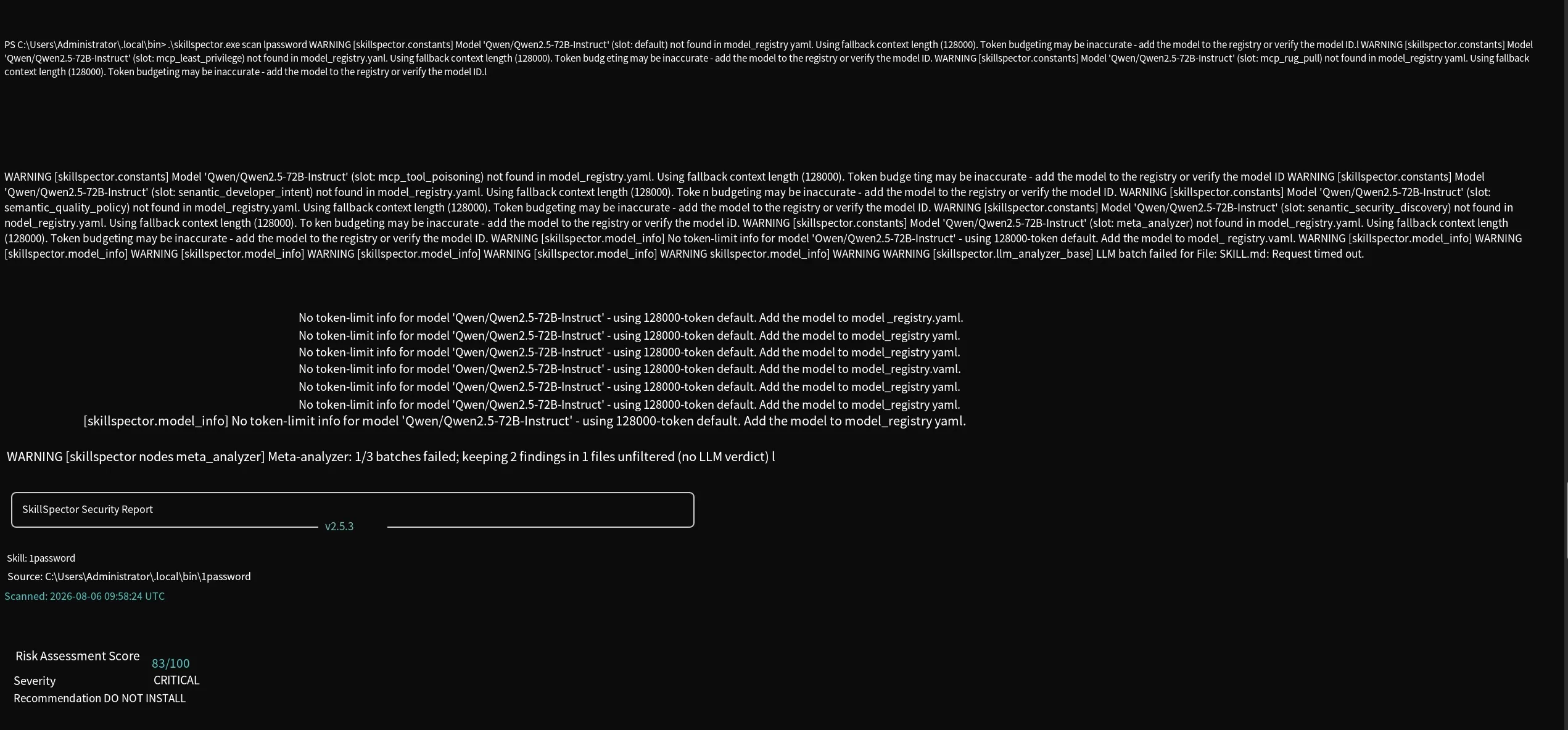
You can see a few warning messages before the scan results. They indicate that the connected Qwen model is not in SkillSpector’s built-in model list. The tool maintains its own model registry that maps models to their context lengths; if a model isn’t in the list, it falls back to the default 128K token limit for context calculation.
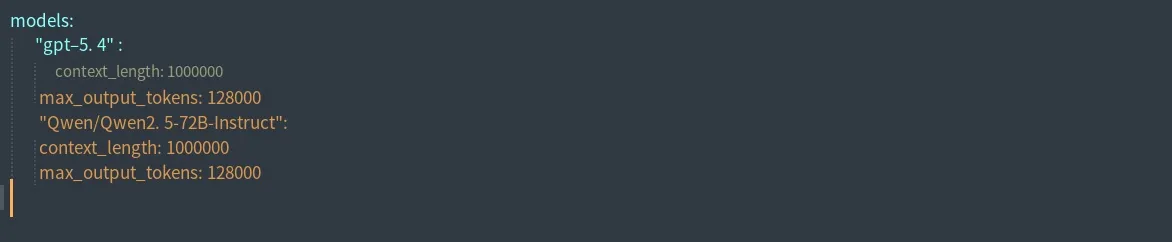
This warning doesn’t affect the scan. If you want to remove it, you can edit the registry file to add the model. The registry file path I found via a global search is:
C:\Users\Administrator\AppData\Local\uv\cache\archive-v0\rpLznrvr3WzPs0Ou\skillspector\providers\openaiJust add Qwen following the existing format, as shown below.
During a scan, results are printed directly to the console. You can also save the results as JSON or Markdown, for example:
skillspector.exe scan <target> --format markdown --output report.mdIf you don’t want LLM-based semantic detection, you can disable semantic scanning with the --no-llm flag:
skillspector scan <target> --no-llmNote: when scanning the same Skill multiple times, results may vary. Unlike traditional rule-based scanning — where a vulnerability is either present or not — LLM-based semantic judgment cannot guarantee identical results every time for ambiguous malicious prompts.
Batch Scanning
Section titled “Batch Scanning”SkillSpector also supports batch scanning, but it’s a separate module that requires downloading the source code. After downloading the source, enter the project root directory and run the Python module with uv, as follows (here, two Skills are placed together in a folder):
uv run python -m contrib.batch_scan.batch_scan ./test --workers 5 -f markdown --output ./report.md --no-llmuv run creates a fresh virtual environment to execute the command. The batch scan module here is contrib.batch_scan.batch_scan, and --workers specifies the number of threads. The result is shown below:
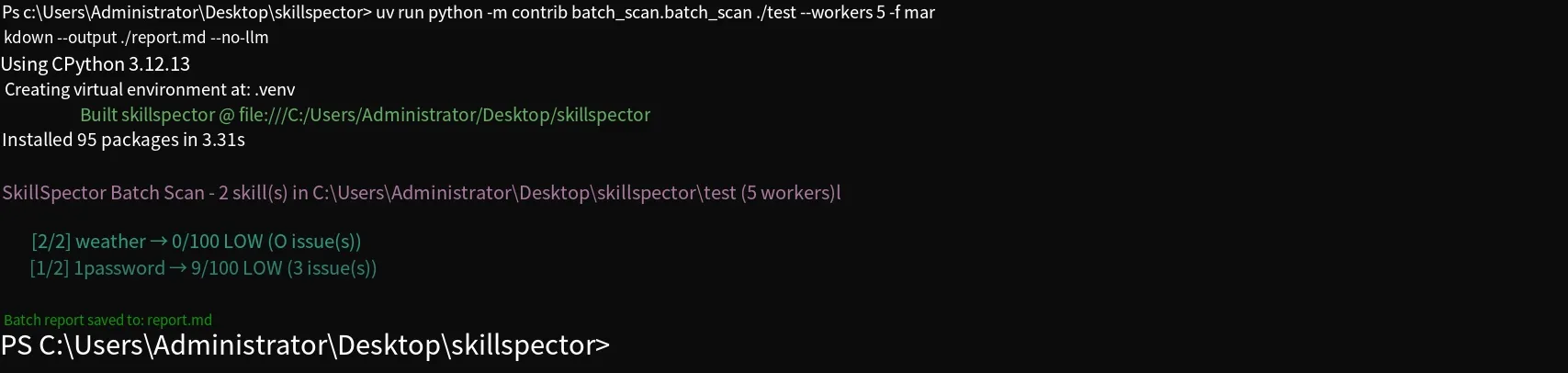
Without model-based analysis, both Skills are flagged as low risk, and 1password only reported 3 issues. This shows that without model analysis, the number of findings drops significantly.
MCP Service
Section titled “MCP Service”If the MCP extension is installed, you can expose SkillSpector as an MCP service. Most MCP services today use the stdio transport (MCP functionality runs locally), and there’s also the HTTP transport mode (MCP functionality runs on a remote server, called remotely via HTTP). SkillSpector provides the following MCP commands:
# stdio modeskillspector mcp# http transport modeskillspector mcp --transport http --host 127.0.0.1 --port 8000Back in Cherry Studio, configuration for stdio mode is simple: enter skillspector as the command and mcp as the argument. You can also add environment variables here, so you don’t need to configure them in the terminal.
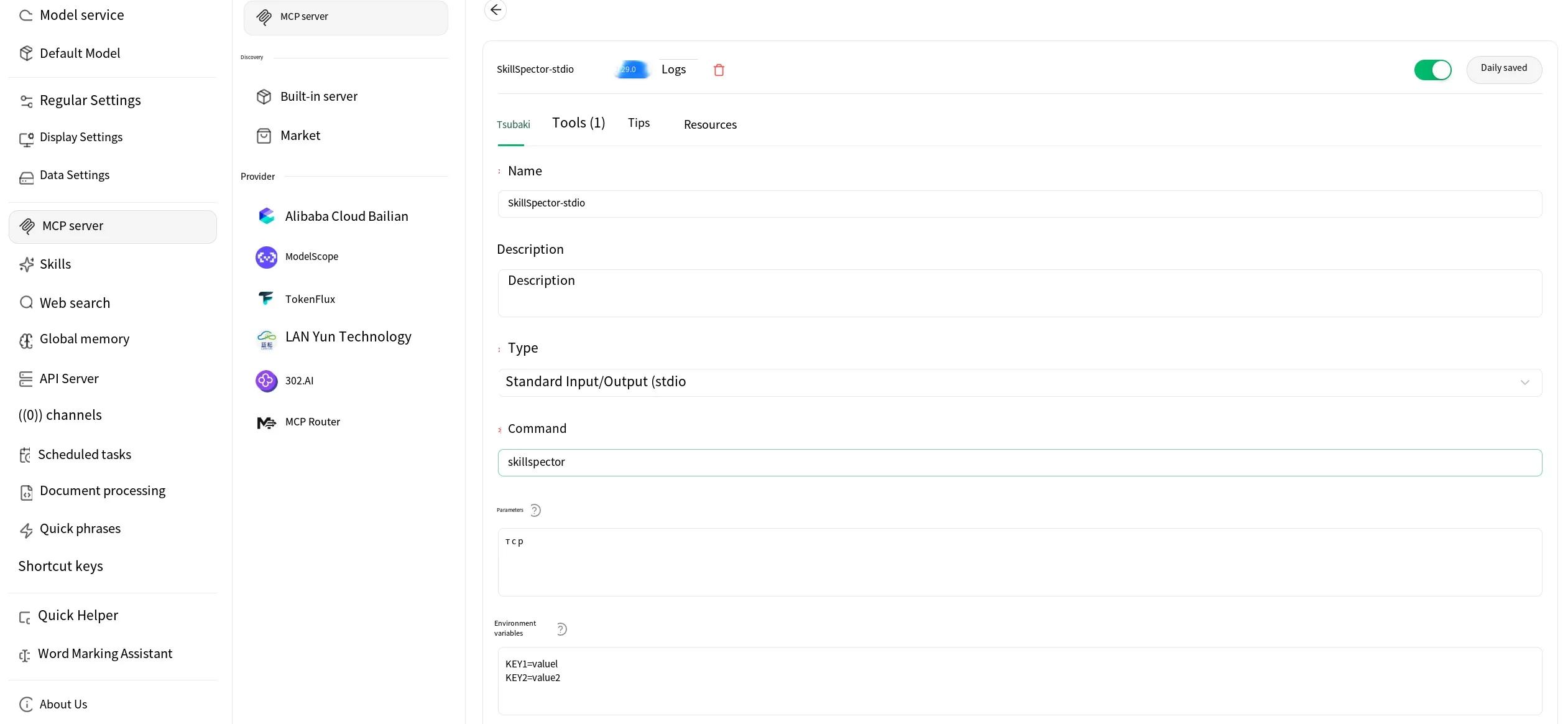
After that, when interacting with the LLM, just select the MCP config you just created and it’s ready to use.
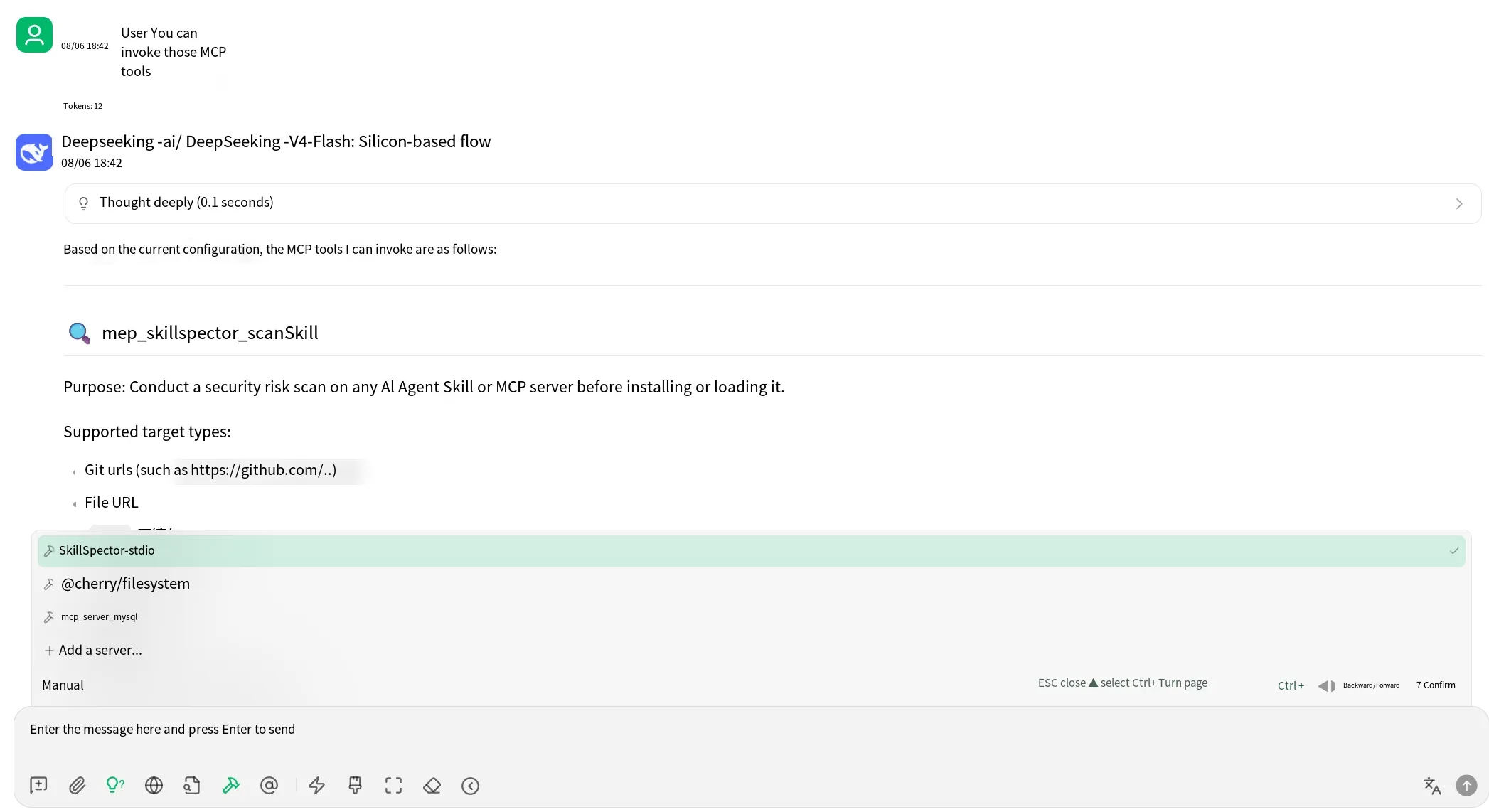
The other mode is HTTP streaming. Run the MCP command on the machine that provides the external service:
skillspector mcp --transport http --host 127.0.0.1 --port 8000This command exposes SkillSpector’s MCP service on the local port 8000. In Cherry Studio, just fill in the corresponding URL — the path here is mcp, as shown in the config below:
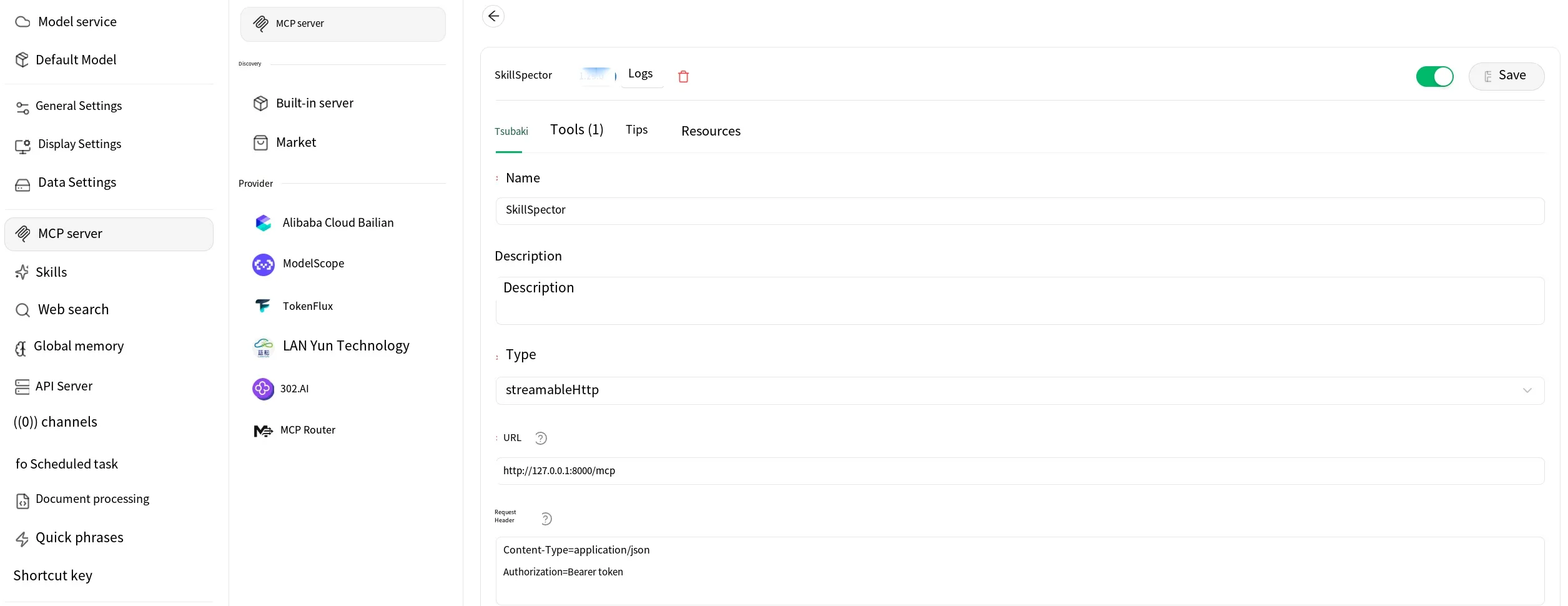
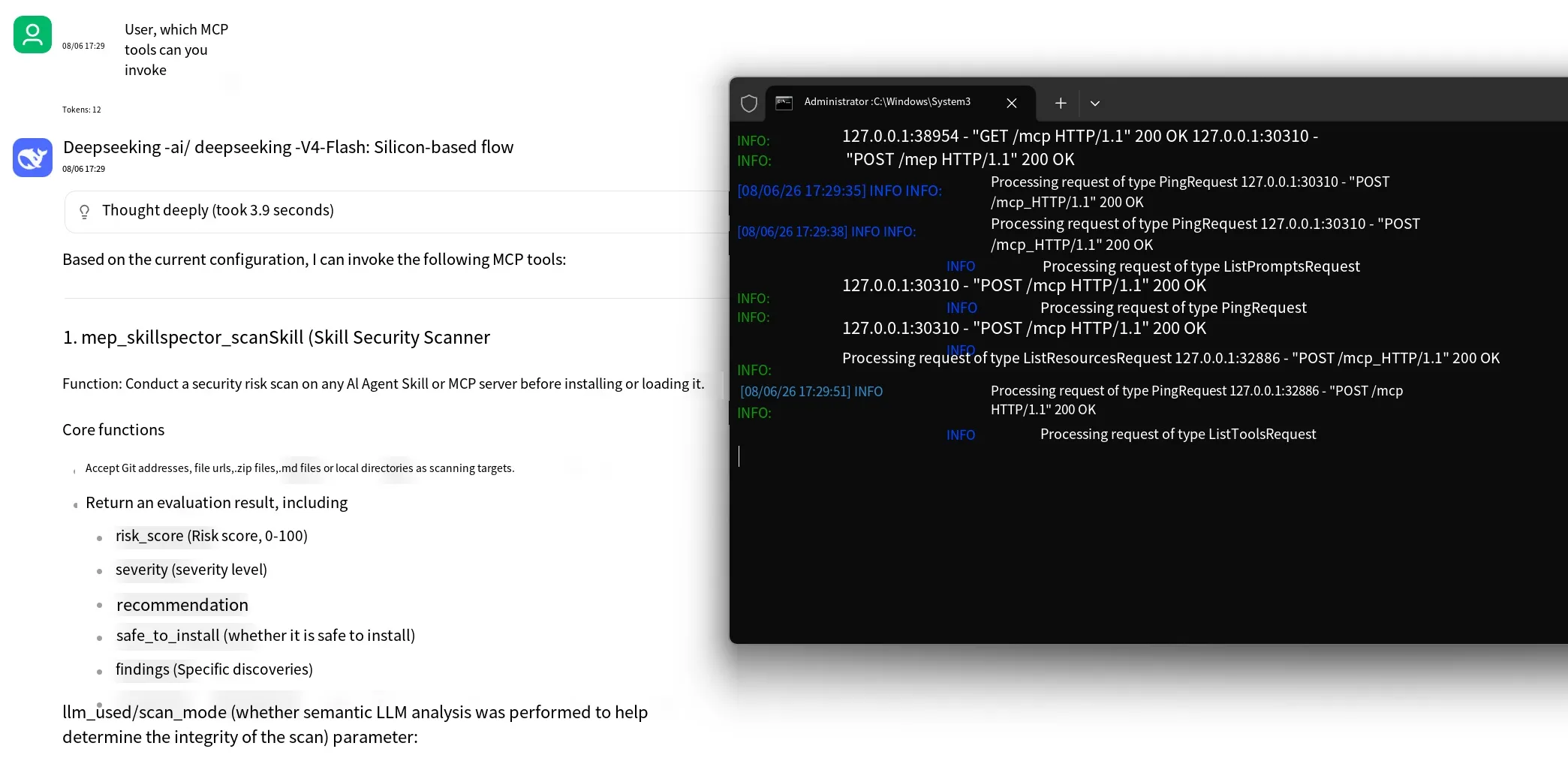
Note that this mode doesn’t allow setting environment variables since the service runs remotely. The effect is shown below — the terminal prints the relevant requests.
Summary
Section titled “Summary”This tool is updated quite frequently, and some inconveniences or mechanisms may change over time. I’ll update this article as new features or changes are released.
That’s all about using SkillSpector to scan Skill security. Thanks for reading.